Pay in full and save 5% with code PAY5. Or reserve with a 20% deposit.
Skip to content
Gogoria

GoGoria

How to Book a Private Transfer in Georgia

Booking a private transfer with GoGoria is simple. Choose your pickup and destination, add any stops you need, select your vehicle and send your booking request online. This step-by-step guide explains the full booking process, including one-way and return transfers, optional stops, passenger and luggage details, payment options, and how to request a change or cancellation.

Ready to book? You can check available vehicles and prices on our Transfers page.
1

One-way transfer

Book a simple A-to-B journey

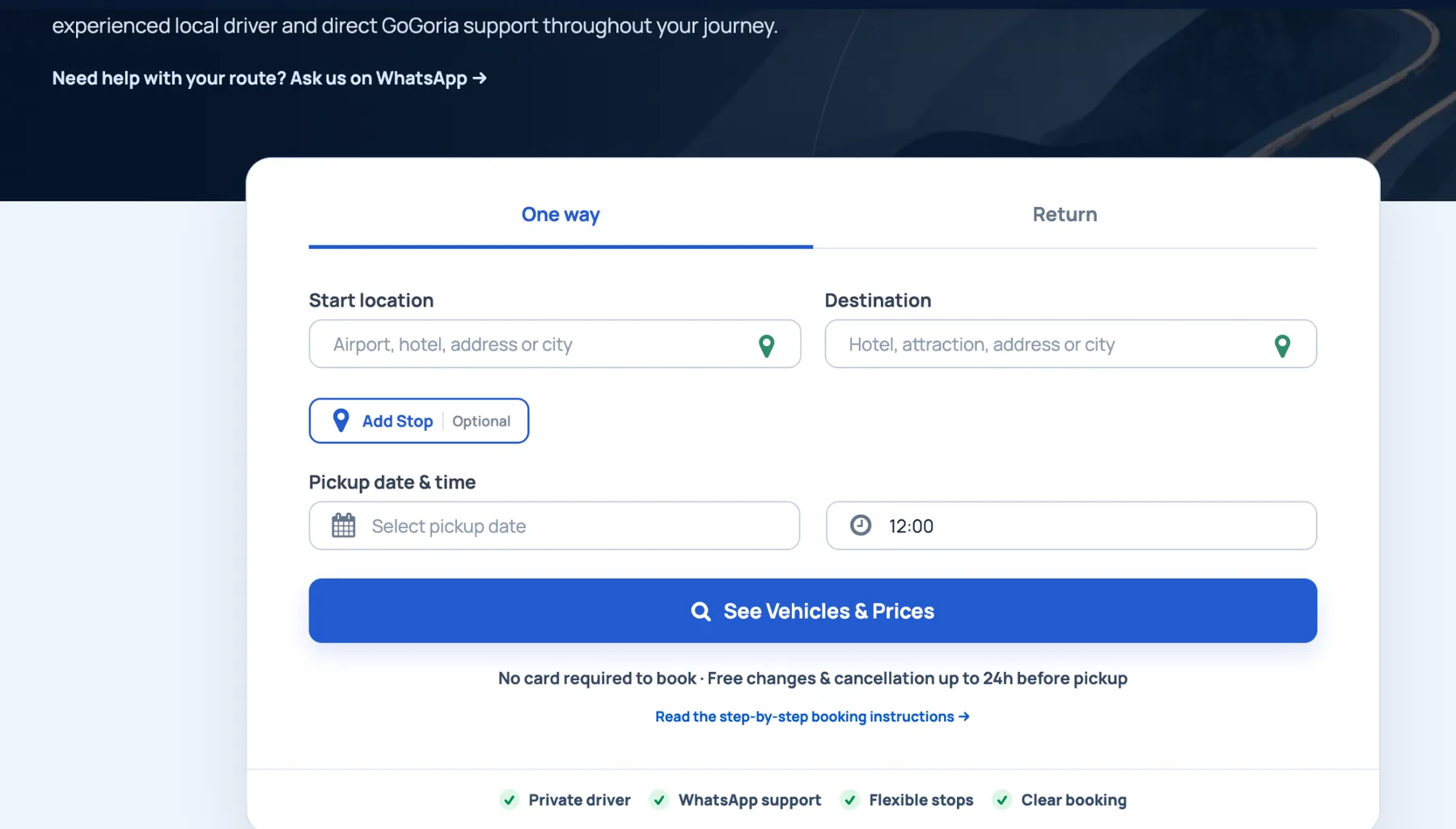
For a direct transfer from one place to another, keep “One way” selected. Enter the pickup point in Start location and your final drop-off in Destination.

Choose the pickup date and time, then click “See Vehicles & Prices”.

One-way GoGoria transfer form with start location, destination, pickup date and time
One way: pickup → destination on the selected date and time.
2

One-way with stops

Add planned stops along the route

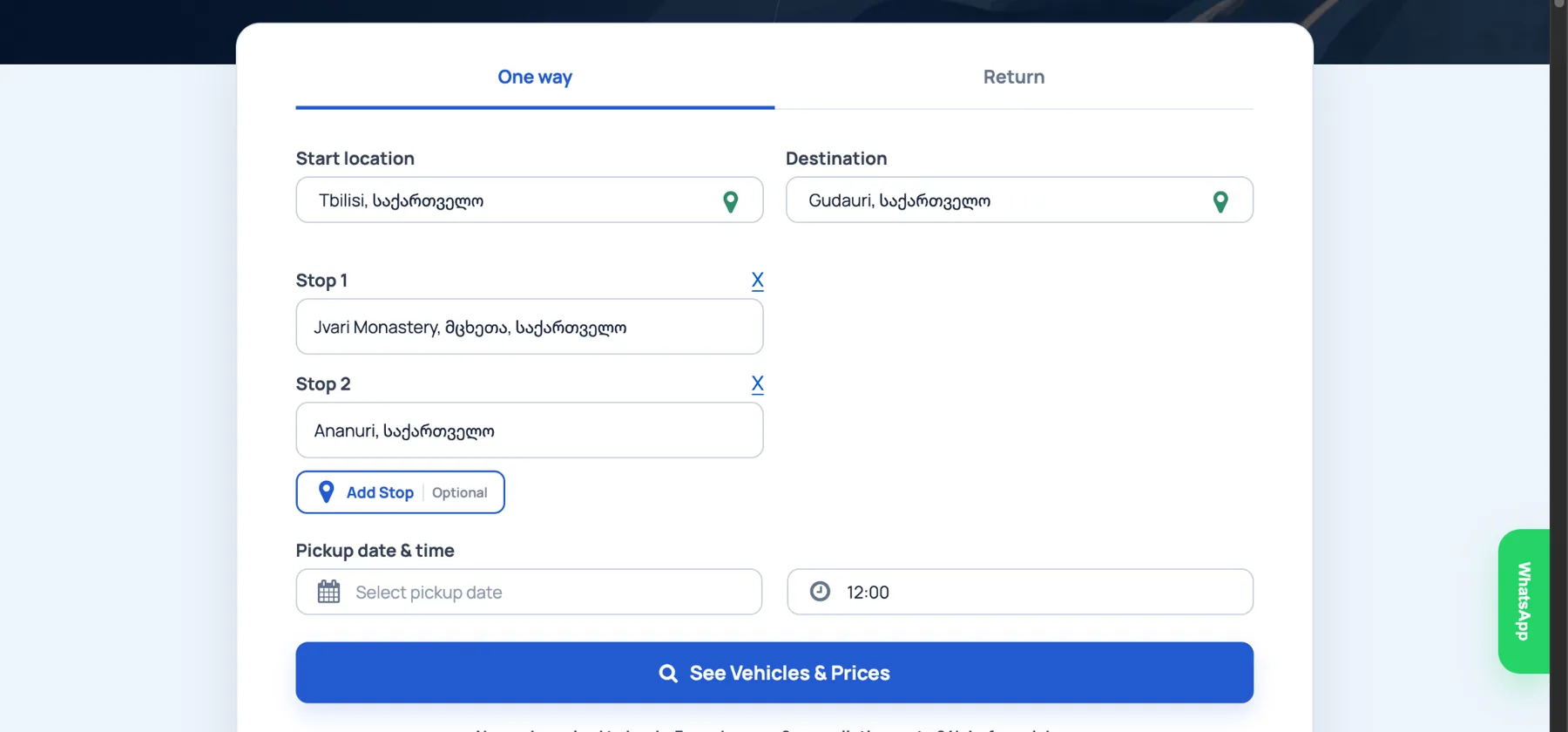
If your journey still finishes at one final destination but you want planned stops on the way, use “Add Stop”. Add the places in the order you want to visit them; more than one stop can be added.

Use Via Stops for planned pickups, addresses, villages, meal or rest stops, errands or sights. Normal short comfort, toilet, coffee or photo stops do not need to be entered as separate Via Stops.

The route and entered stops are included when the system calculates the price.

GoGoria booking form showing multiple route stops and Add Stop control
Add Stop lets you build the route before checking vehicles and prices.
3

Return journey

Return the same day or on another date

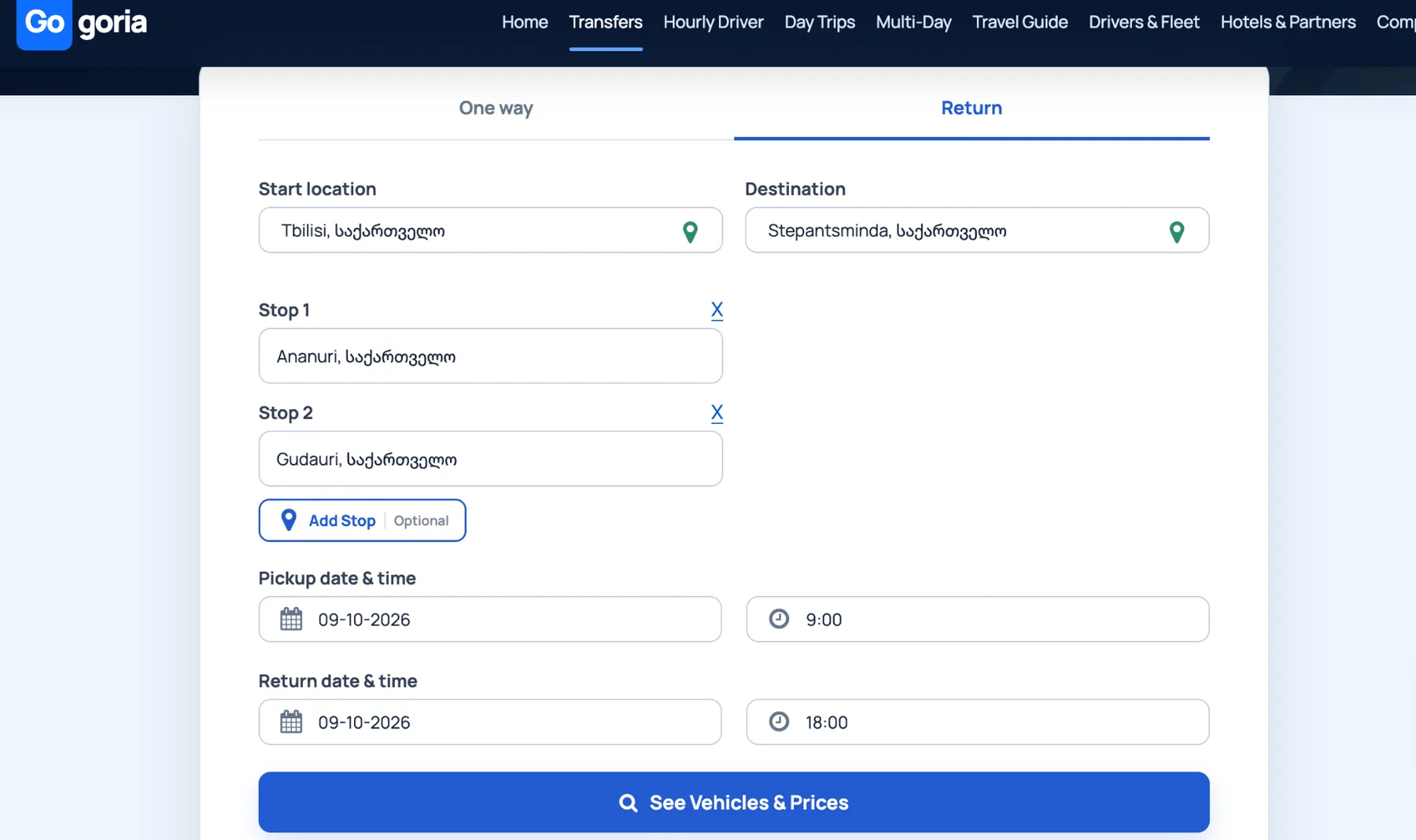
Select “Return” when you also need the journey back. Enter the outward pickup date and time and then the return pickup date and time. Planned stops can also be added to the route.

Same-day return: the complete service, from the first pickup until the final drop-off back at the starting point, must finish within 12 hours.

Example: if a Stepantsminda trip starts at 09:00 and the drive back takes about 3 hours, choose the return pickup no later than about 18:00 so the final drop-off can fit inside the 12-hour period.

Return on another day: choose the later date and pickup time in Return. The vehicle and driver are not reserved for you between the two journeys. If the complete same-day service would exceed 12 hours, the return is treated as a new journey so the driver can have the required rest time.

GoGoria return transfer form with outward and return dates and times
Return: set both outward and return pickup times.
4

Passengers, luggage & vehicle

Choose the right vehicle category

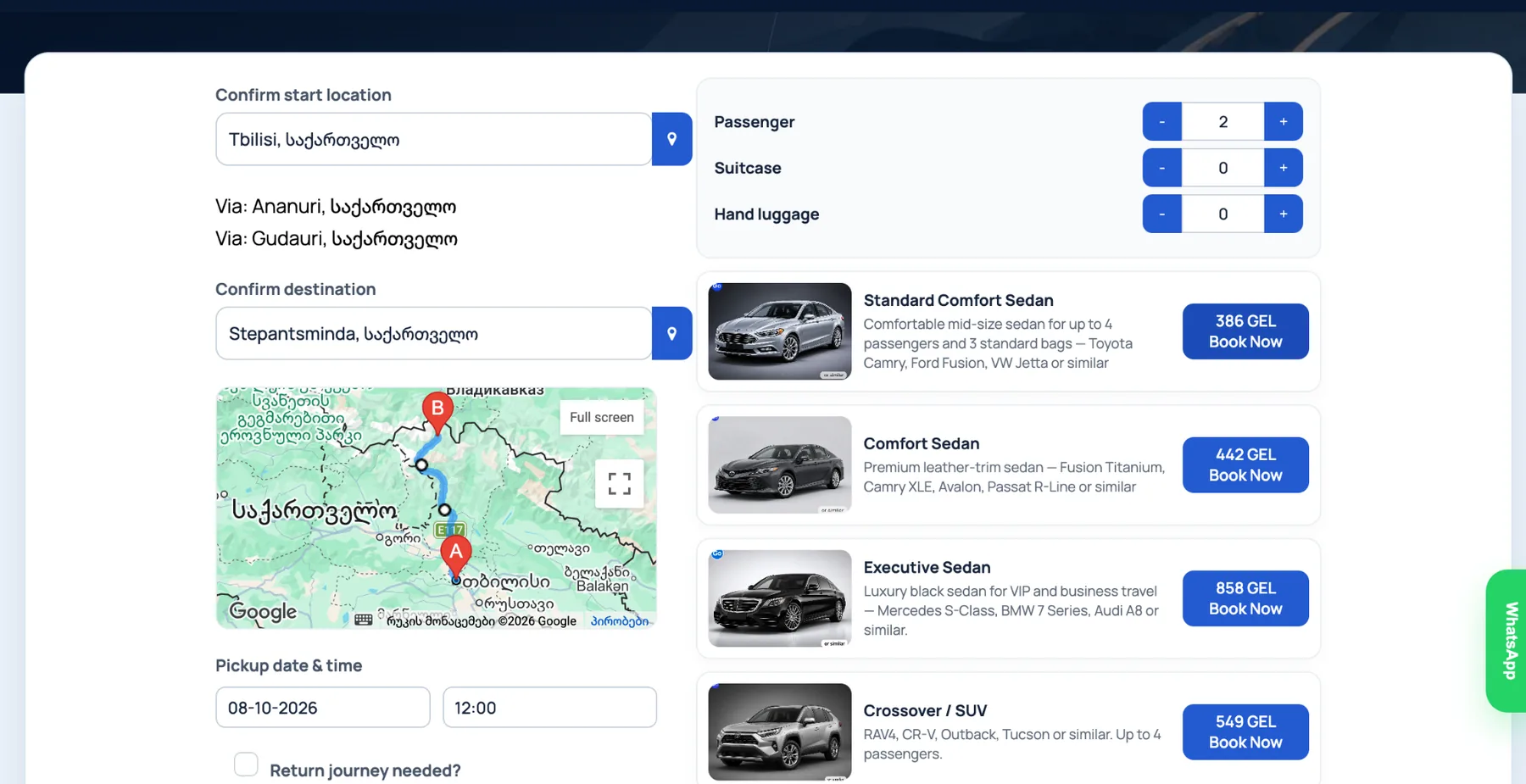
On the results screen, check the route and set the number of passengers, suitcases and hand luggage. Available vehicle categories and their prices are shown for the journey you entered.

Vehicle photos represent the category; the exact model may vary within the selected class. If you need more seats, unusual luggage space or another specific requirement, tell us before confirming.

Choose the suitable category and click “Book Now”.

GoGoria vehicle results with passenger, suitcase and hand luggage controls
Set passengers and luggage before selecting the vehicle.
5

Contact & special requests

Tell us who is travelling and what you need

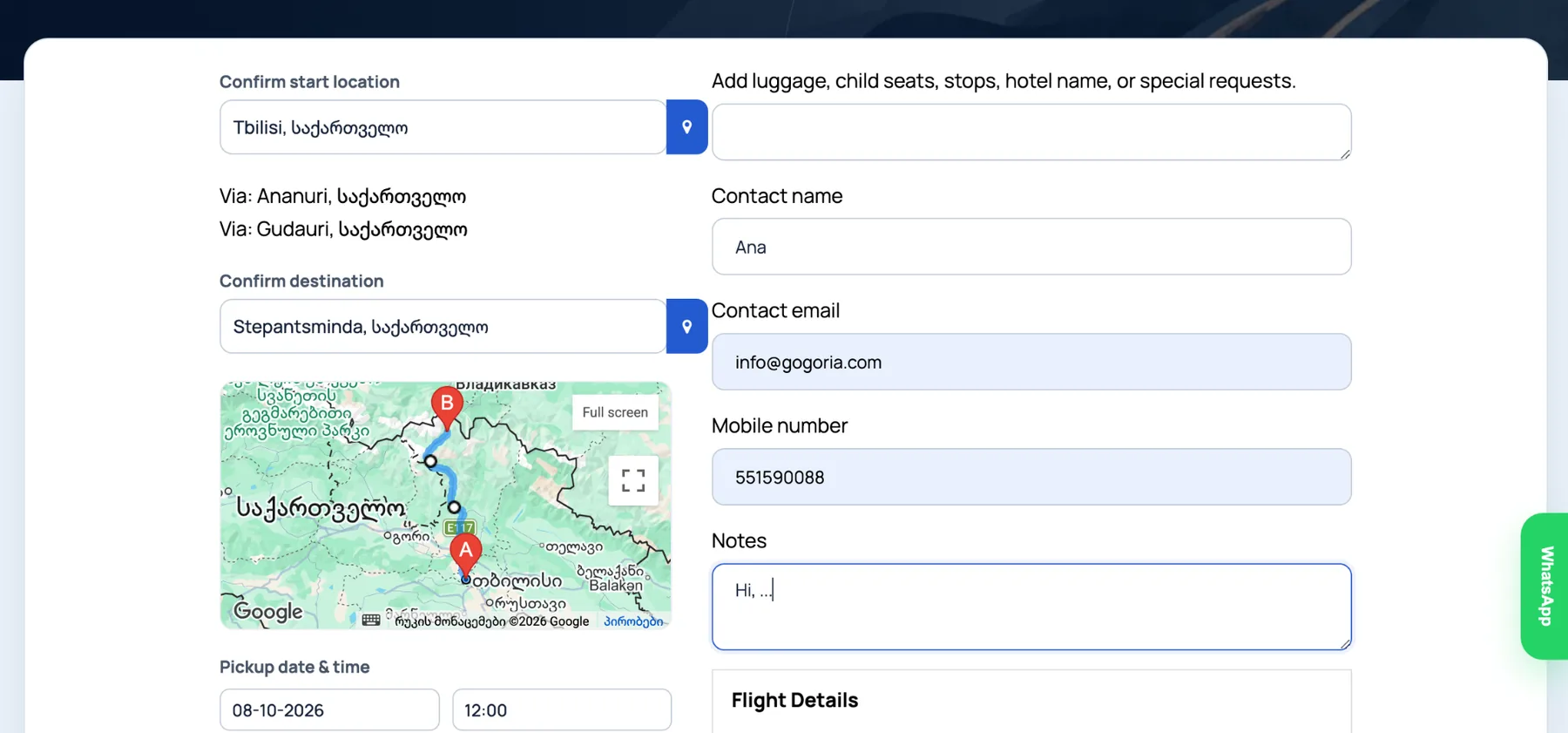
Enter the contact name, email and mobile number. Use the request/notes field for useful details such as your hotel name, child-seat request, extra or oversized luggage, or anything else we should know about the journey.

Use an email and phone number you can access during the trip.

GoGoria transfer contact details and special requests form
Add your contact details and any special requests.
6

Airport journey

Add flight details when relevant

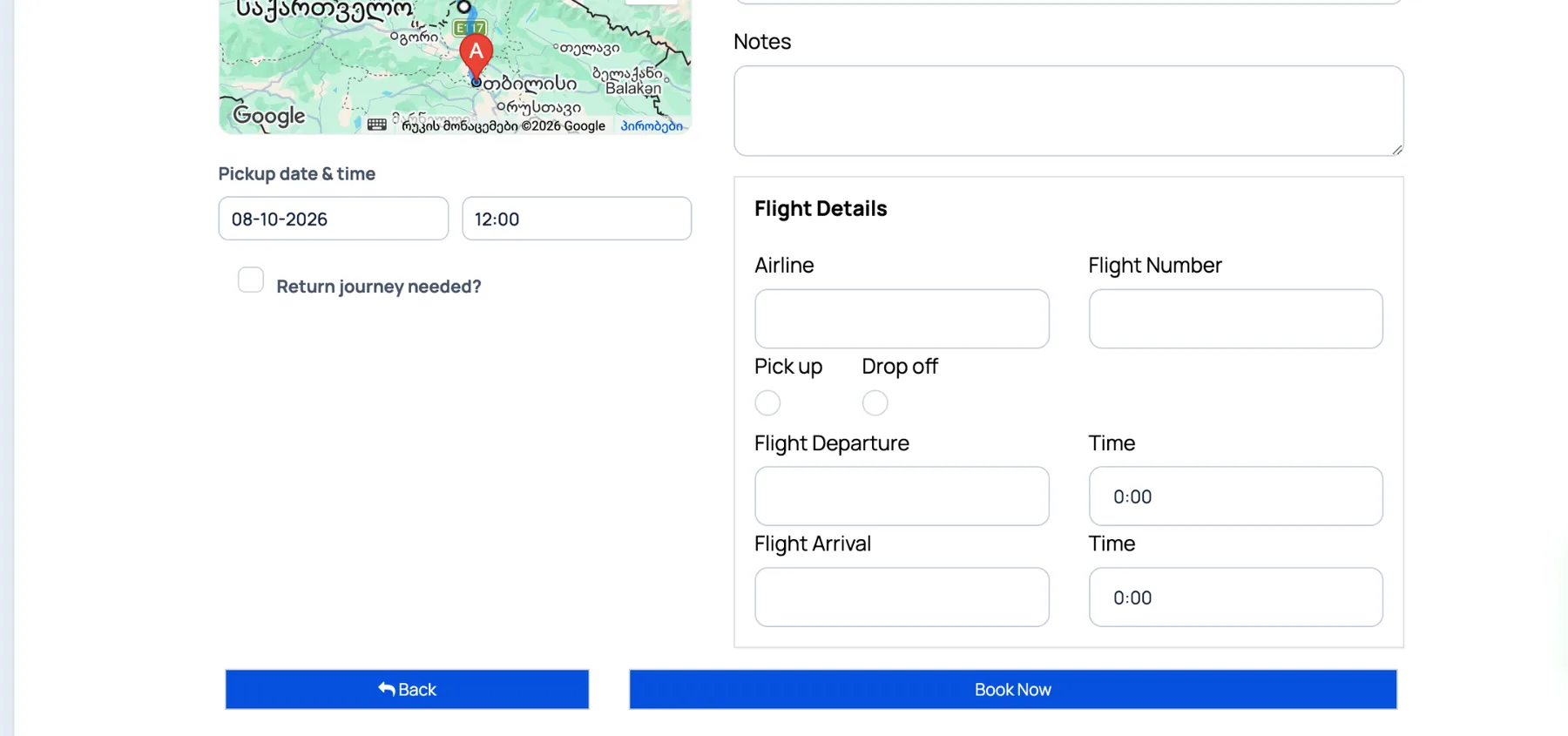
If the journey is to or from an airport, open Flight Details and enter the airline and flight number together with the requested flight timing fields shown in the form.

These details help us coordinate an airport pickup or drop-off correctly, especially when arrival timing changes.

When everything is complete, submit the booking request.

GoGoria flight details fields for an airport transfer
For airport journeys, add the airline and flight information shown in the form.
7

Booking request received

Open and review your booking

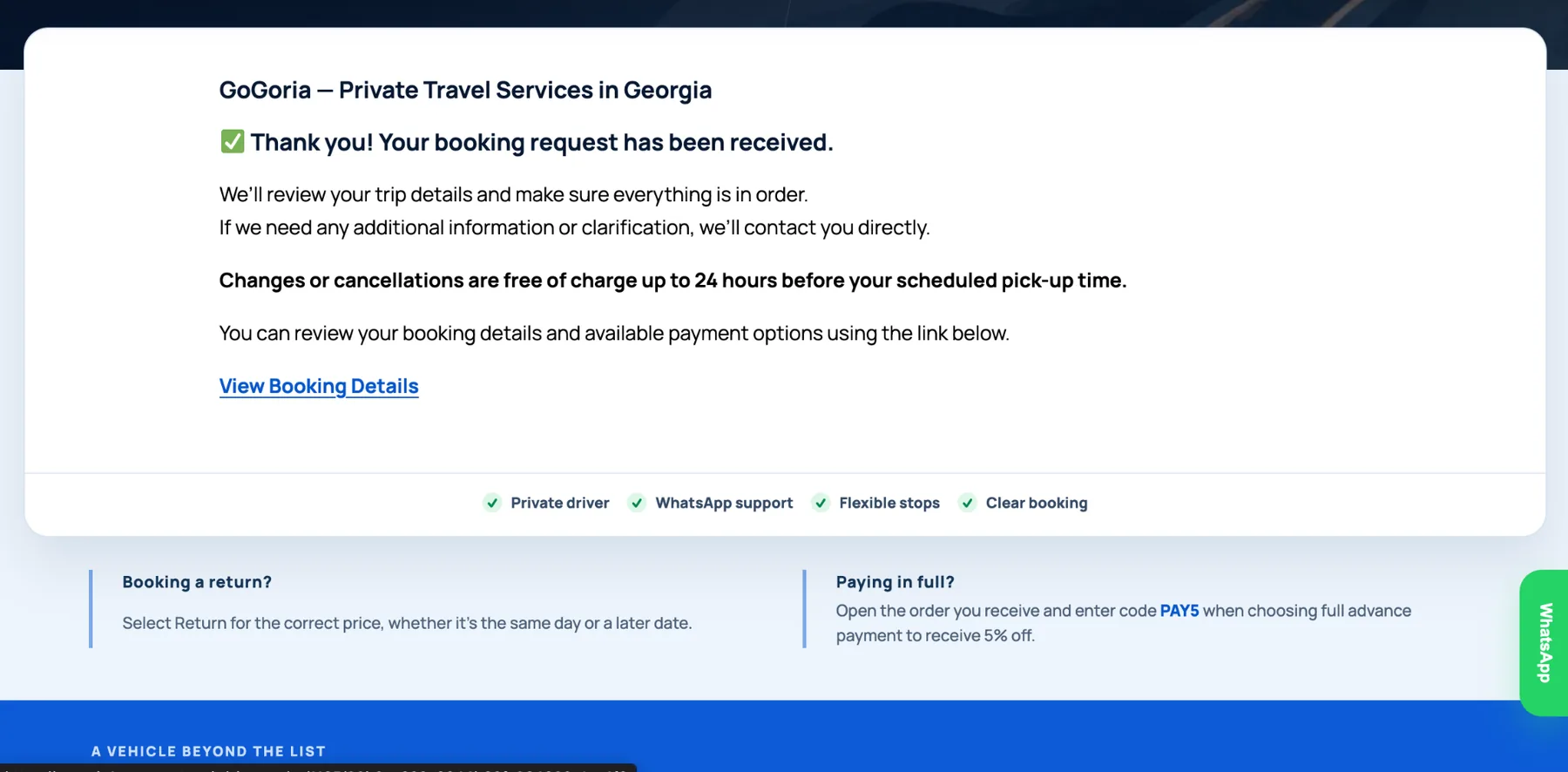
After submitting the form, you will see that the booking request has been received. You will also receive the order information by email.

Open “View Booking Details” and check the route, date and time, vehicle, passenger information and price before continuing.

GoGoria booking request received screen
The confirmation screen links you to the full booking details.
8

Order review

Check the order before payment

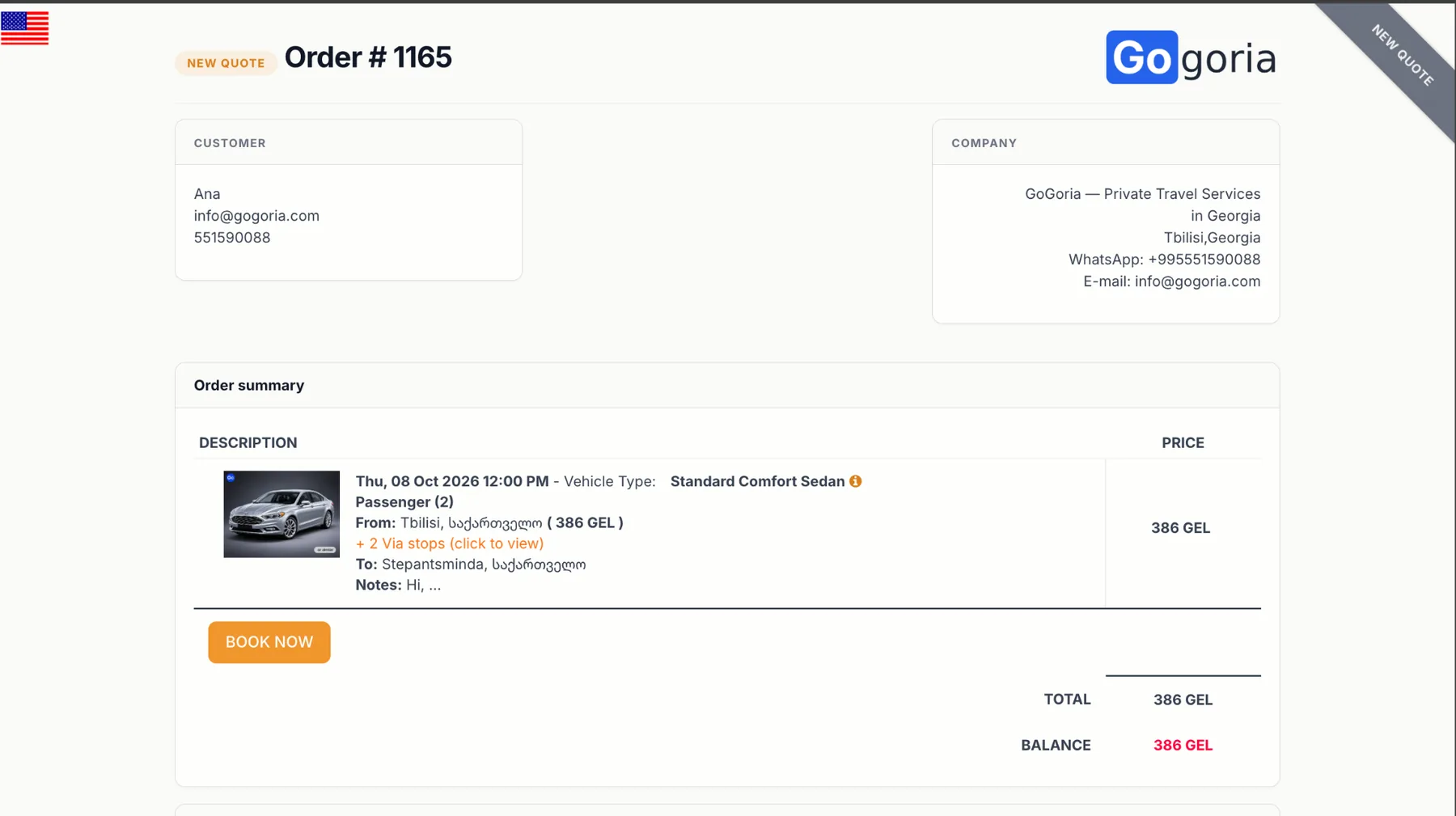
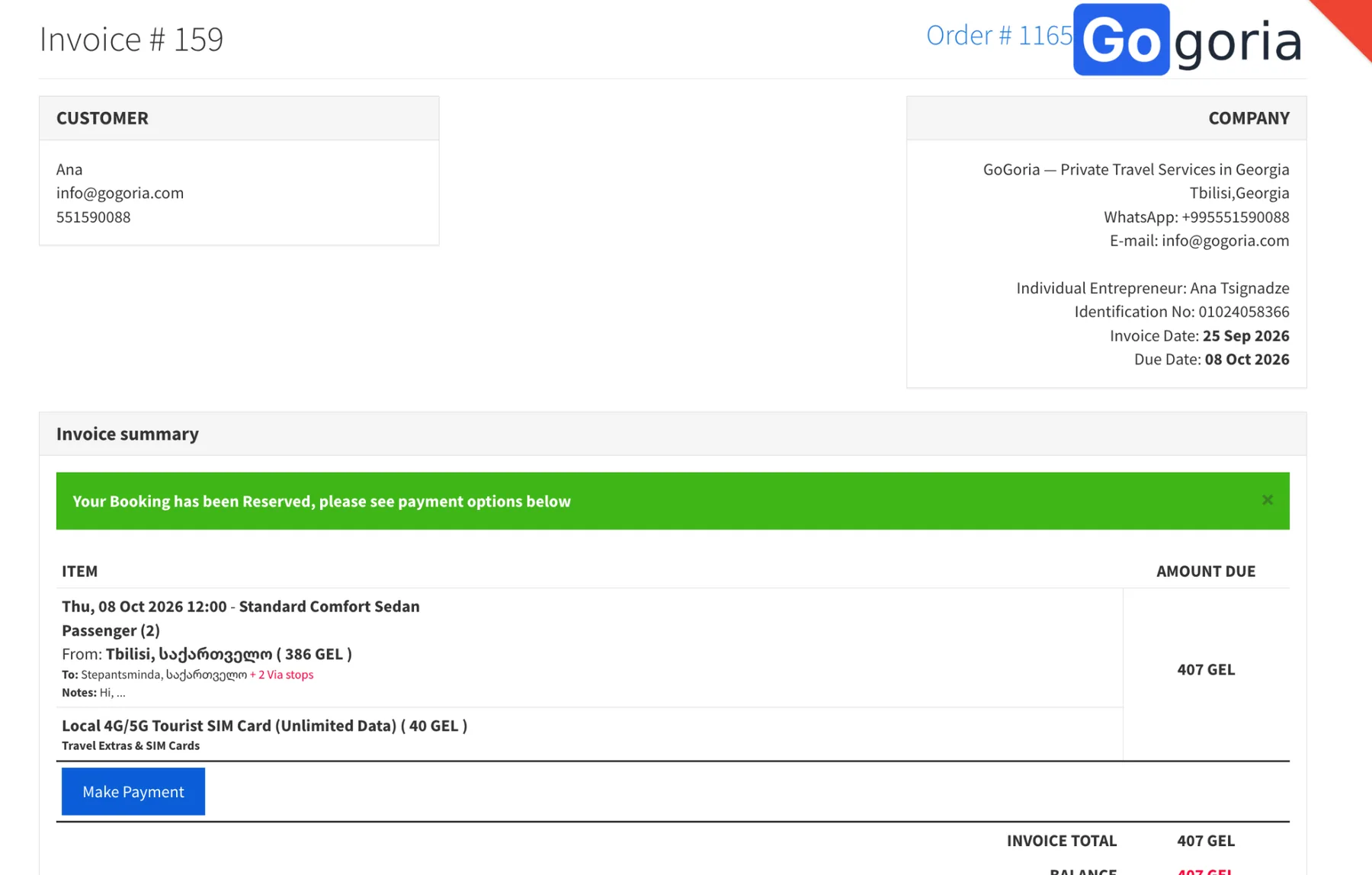
The order page shows the booking reference, journey summary, selected vehicle and price. Review these details carefully before you confirm the order.

If something needs correcting, do not create a second booking. Use “Request Change” and tell us what should be updated.

GoGoria order page with journey summary, vehicle and price
Review the order summary and booking reference.
9

Optional extras

Add useful extras and choose the quantity

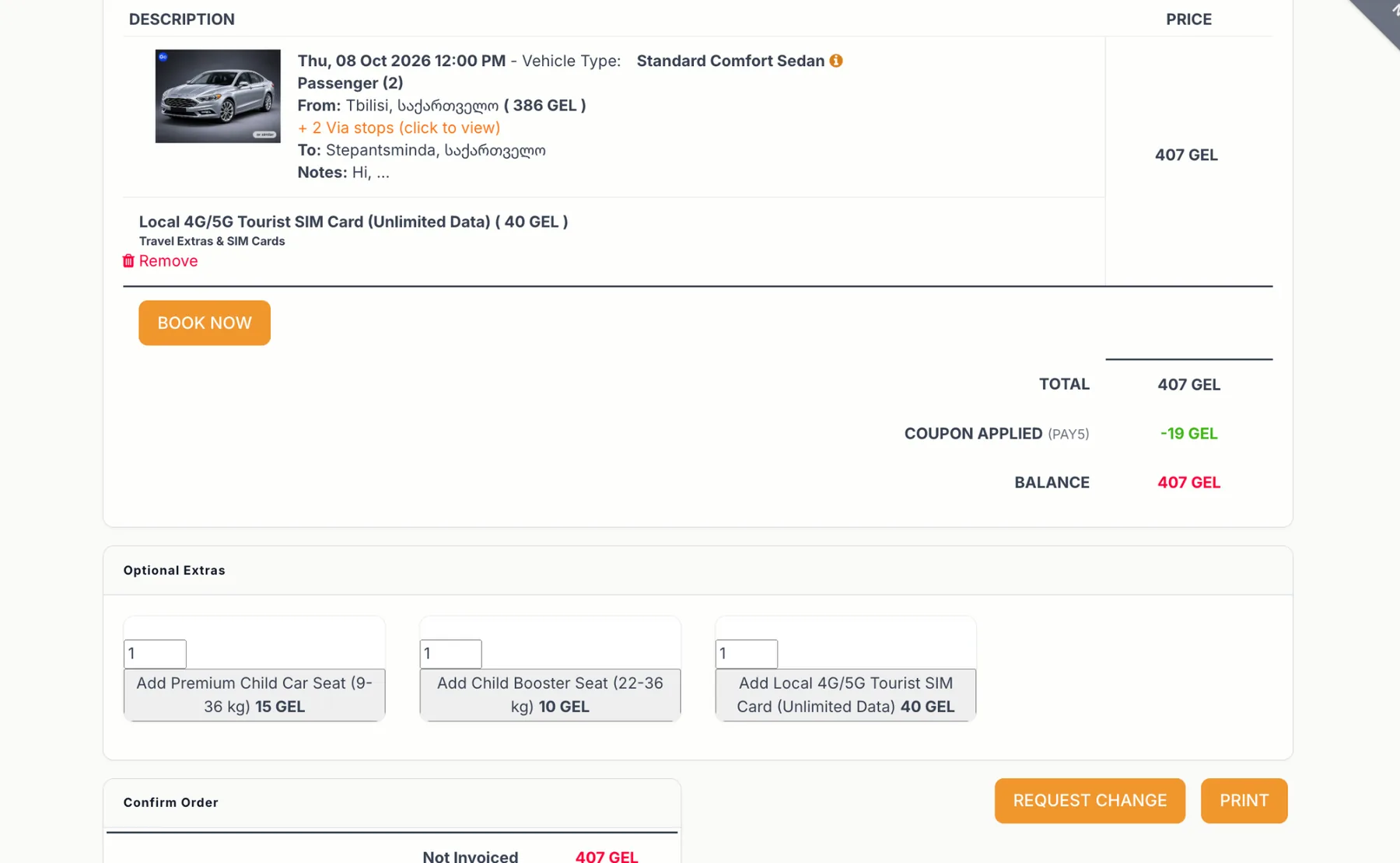
Available extras are shown as simple cards on the order page. Click the extra you need and select the required quantity. The total updates when an extra is added or removed.

Depending on the route and service, options can include a child car seat, a local tourist SIM card, a 4×4 for the road up to Gergeti, or a 4×4 journey from Mestia to Ushguli.

Only the extras available for that booking are shown on the order.

GoGoria optional extras cards and quantity controls
Click an extra card, choose the quantity and check the updated total.
10

Deposit or full payment

Confirm the order and choose how to pay

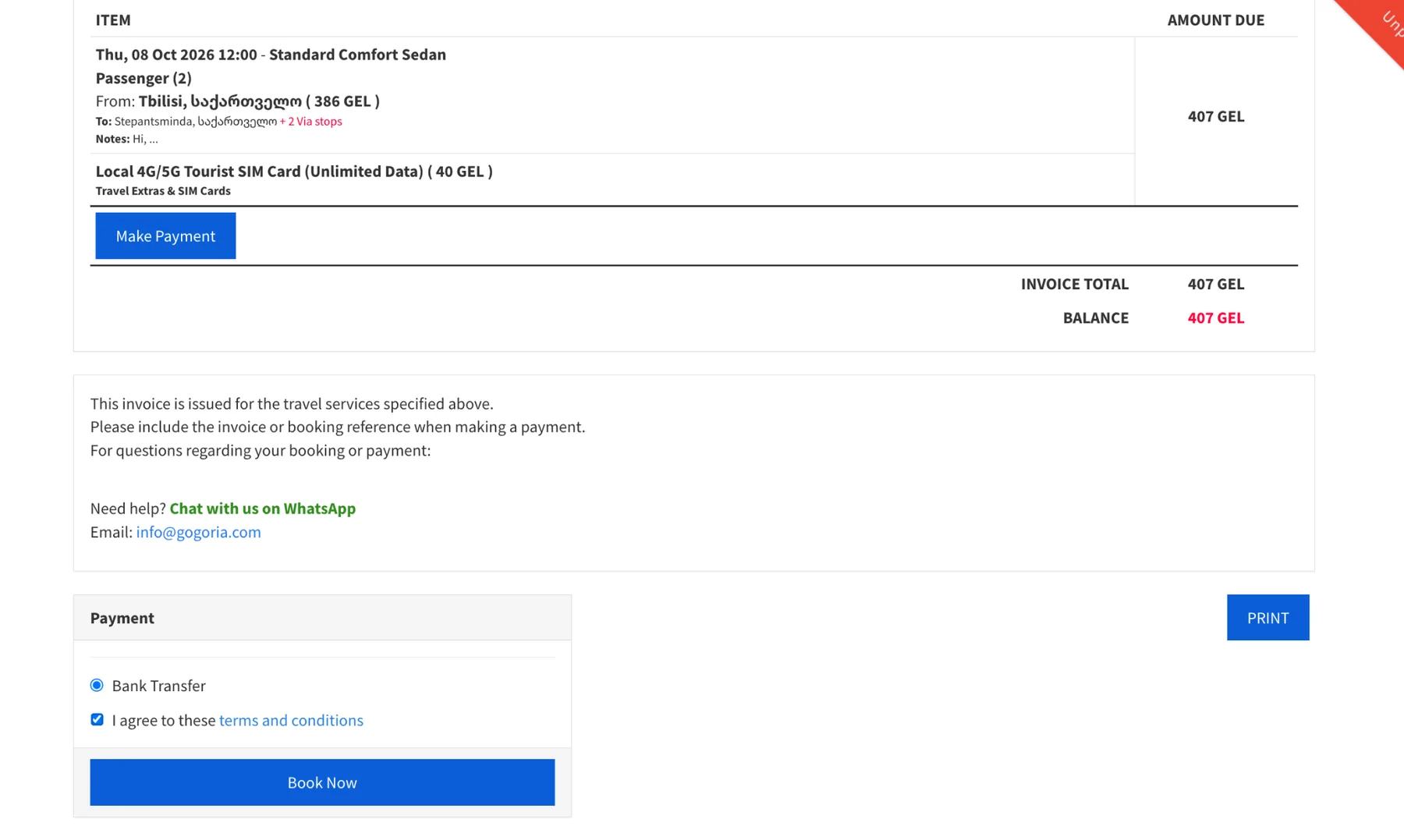
You can secure the booking with a 20% deposit or choose full advance payment. Accept the Terms & Conditions and continue with “Book Now” to create the invoice/payment step.

Paying in full? Enter coupon code PAY5 in the coupon field and click Apply to receive 5% off the eligible booking amount. PAY5 applies only to full advance payment and not to the 20% deposit option.

GoGoria invoice and payment continuation screen
Continue from the confirmed order to the invoice and payment step.
11

Payment instructions

Complete the selected payment option

On the invoice, continue to payment and select the available payment method. After you select it and accept the Terms & Conditions, the relevant payment instructions are displayed.

If PAY5 was applied, continue with full advance payment. Keep the order and invoice numbers as your booking/payment reference.

GoGoria payment method and payment instructions screen
Select the payment option to display the payment instructions.
12

Changes & cancellation requests

Use Request Change if plans change

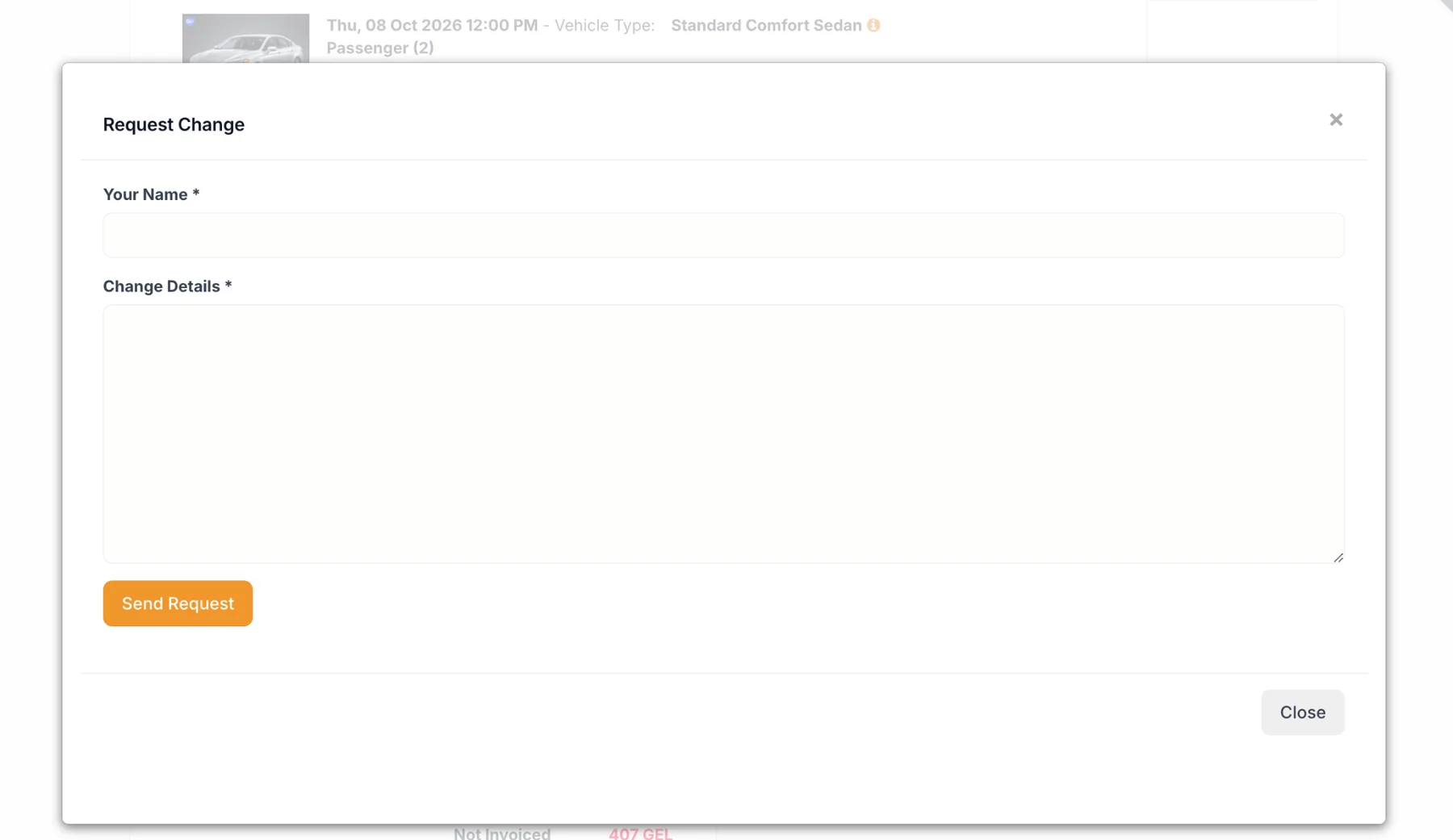
If you notice a mistake or need to change the route, timing, passengers, luggage or another booking detail, open the order and choose “Request Change”. Enter your name and explain the requested change.

The same form can be used to request cancellation. GoGoria reviews the request and processes the change or cancellation according to the booking conditions.

GoGoria Request Change form with name and change details fields
Use Request Change instead of making a duplicate booking.

After booking

What Happens After Booking?

Once your booking is confirmed and a driver is assigned, you will automatically receive the driver details by email before your scheduled pickup.

GoGoria support remains available if you need any help or changes before or during your journey.

Ready to book?

Check your route and price

Return to Transfers to start a booking. If your route is unusual or you need help choosing the right setup, message GoGoria on WhatsApp.

WhatsApp